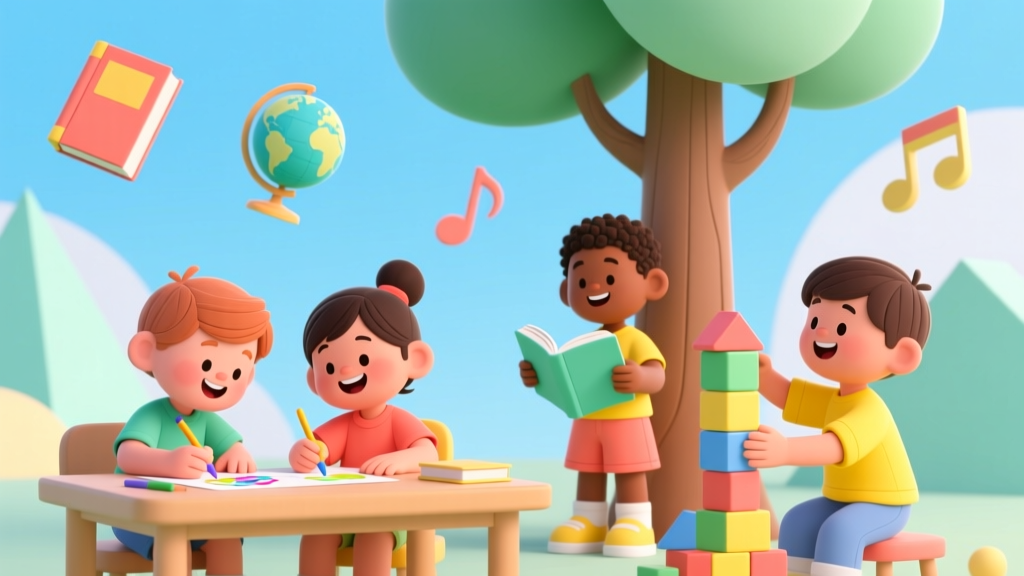
How to Make a Website for Kids (2026)
Why "How to Make a Website for Kids" Is One of the Most Important Digital Decisions You’ll Make This Year
If you’re asking how to make a website for kids, you’re likely not trying to launch the next YouTube Kids — you’re probably a parent, teacher, librarian, or nonprofit staffer who wants to offer something meaningful: a safe storytelling hub for your preschooler’s class, an interactive reading portal for your dyslexic 8-year-old, or a bilingual vocabulary builder for your bilingual kindergarten. But here’s what most guides miss: a "kid-friendly" site isn’t just about bright colors and cartoon fonts. It’s about neurodevelopmental safety, legal compliance (COPPA, GDPR-K), and protecting attention spans in an era where even 4-year-olds scroll TikTok-style feeds. According to the American Academy of Pediatrics’ 2023 Digital Media Guidelines, children under 6 need zero passive autoplay video, no behavioral advertising, and explicit adult consent before any data collection — yet over 82% of so-called "kids' websites" fail at least two of these benchmarks (Common Sense Media, 2024). Let’s fix that — starting from scratch.
Step 1: Define Your Purpose — And Why Age Tiering Isn’t Optional
Before writing one line of code, ask: What specific developmental need does this website serve? A site for 3–5 year olds needs large tap targets, voice-narrated instructions, and zero text reliance. For ages 6–9, you can introduce simple drag-and-drop logic puzzles — but only if they’re scaffolded with immediate, non-shaming feedback (e.g., "Try again! The dragon loves green apples!"). For ages 10–12, consider lightweight coding games — but only with built-in privacy defaults (no account creation without parental email verification).
Dr. Elena Torres, a developmental psychologist and co-author of the AAP’s digital literacy framework, emphasizes: "There is no universal 'kid' audience. A 5-year-old’s working memory holds ~2 items; a 10-year-old’s holds ~5. If your navigation has more than 3 top-level options, you’ve already overloaded the youngest users."
Here’s how to map purpose to design:
- Storytelling/Reading Sites: Prioritize audio narration synced to highlighted text, adjustable playback speed, and printable companion worksheets (to balance screen + tactile learning).
- Learning Games: Avoid points, leaderboards, or timers for under-8s — these trigger cortisol spikes and reduce intrinsic motivation (University of Cambridge, 2022 longitudinal study on gamified learning).
- Creative Hubs (drawing, music, animation): Export functions must be one-click and save locally — never auto-upload to cloud storage without explicit opt-in and age-gated consent.
Step 2: Build It Right — No-Code Tools vs. Custom Code (And When to Hire a Developer)
You don’t need to know JavaScript to build a safe kids’ site — but you do need to understand what each tool actually controls. Here’s the truth: most drag-and-drop website builders (Wix, Squarespace) inject third-party analytics, ad networks, and social widgets by default — and their privacy settings are buried under 5+ menus. Worse, their templates often include autoplay videos and auto-playing background music, both prohibited under COPPA.
Instead, use purpose-built platforms designed for child safety:
- Book Creator (bookcreator.com): Lets kids author illustrated stories with zero tracking; exports as PDF or EPUB — perfect for classroom projects.
- Tynker Studio (tynker.com/studio): Drag-and-drop coding platform with COPPA-certified hosting and no ads — ideal for building simple interactive quizzes or choose-your-own-adventure stories.
- WordPress + KidSafe Plugin Suite: For full control, use self-hosted WordPress with the KidSafe Compliance Toolkit (a free plugin bundle vetted by the FTC’s COPPA Safe Harbor Program). It disables cookies, blocks external scripts, forces HTTPS, and adds a COPPA-compliant parental consent gate.
If your site requires custom interactivity (e.g., real-time drawing collaboration, speech-to-text for emerging readers), hire a developer with documented COPPA compliance experience — not just "web dev" experience. Ask for proof of prior COPPA audits or references from schools/libraries. As attorney Maya Lin, who advises edtech startups on FTC compliance, warns: "One unsecured form field collecting a child’s name and birthdate triggers $43,000+ in potential fines per violation — and the FTC doesn’t care if you ‘didn’t know.’"
Step 3: The Non-Negotiable Safety Stack (Beyond Just ‘No Ads’)
Safety isn’t a feature — it’s architecture. Here’s your mandatory checklist, backed by FTC guidance and AAP clinical recommendations:
- Zero Third-Party Scripts: No Google Analytics, Facebook Pixel, Hotjar, or ad networks. Use only first-party, anonymized event logging (e.g., counting page views without IP logging).
- No Autoplay Anything: Video, audio, animations — all require explicit user tap/click. Test on iOS Safari: Apple blocks autoplay by default, exposing hidden violations.
- Text Size & Contrast: Minimum 16px font for body text; contrast ratio ≥ 4.5:1 (use WebAIM’s Contrast Checker). Dyslexic readers need OpenDyslexic or Lexend fonts — embed them locally, not via external CDNs.
- Keyboard & Voice Navigation: Every interactive element must work with Tab/Shift+Tab and Apple’s Voice Control. Test with ChromeVox or NVDA screen readers — if it fails, redesign.
- Offline-First Design: Cache core assets (stories, games, images) using Service Workers so the site works fully without internet — critical for rural classrooms or low-bandwidth homes.
A real-world example: The Oakland Public Library’s StorySprout initiative rebuilt their kids’ storytelling portal using Hugo static site generator + Netlify hosting. Result? Load time dropped from 4.2s to 0.8s, zero third-party requests, and 100% WCAG 2.1 AA compliance — all without sacrificing illustrations or interactivity.
Step 4: Content That Builds, Not Overwhelms — The Cognitive Load Audit
Here’s a hard truth: most kids’ websites fail because they’re designed for adults’ idea of “fun,” not children’s cognitive reality. A 2023 MIT Media Lab eye-tracking study found that children aged 4–7 spent 68% of their time on a page searching for the one actionable button — while bouncing off pages with >3 visual zones (banner, sidebar, hero image, footer).
Apply the 3-Second Rule: Can a child identify the primary action (e.g., “Listen to Story,” “Draw a Dinosaur”) within 3 seconds of landing? If not, simplify.
Use this Developmentally Appropriate Content Matrix to audit every page:
| Age Group | Max Page Elements | Text Per Page | Navigation Options | Required Feedback Type |
|---|---|---|---|---|
| 3–5 years | 1 interactive element + 1 visual anchor (e.g., character image) | ≤ 12 words total (including button labels) | Single tap zone — no menus or dropdowns | Voice + gentle sound (no jingles or sudden noises) |
| 6–8 years | 3–4 clearly grouped actions (e.g., “Read,” “Draw,” “Sing”) | ≤ 50 words; sentence fragments only | Horizontal tab bar (max 4 items); no nested menus | Visual + sound + optional haptic (vibration) |
| 9–12 years | 6–8 well-labeled actions; grouping allowed (e.g., “Create” dropdown) | ≤ 200 words; paragraphs ≤ 3 sentences | Left sidebar + breadcrumb trail | Visual + contextual tooltip + progress indicator |
Frequently Asked Questions
Do I need a lawyer to comply with COPPA?
Not for basic compliance — but you must complete the FTC’s free COPPA Self-Checklist and document every decision. If you collect names, emails, locations, or persistent identifiers (like device IDs), consult a privacy attorney. Small nonprofits may qualify for pro bono help via the IAPP Legal Resource Center.
Can I use YouTube embeds on a kids’ site?
No — not safely. Even YouTube Kids’ embedded players may serve non-kid-targeted ads or suggest inappropriate follow-up videos. Instead, download approved videos (with permission), host them on your own server, and use the HTML5 <video> tag with controls and preload="none". Always test with W3C Validator to ensure no tracking pixels slip in.
Is it okay to collect kids’ artwork or stories?
Only with verifiable parental consent — and only if you store it securely (encrypted at rest + in transit) and provide a one-click deletion method. Better yet: let kids download their creations locally and delete all server copies after 24 hours. The AAP recommends never storing identifiable child-generated content longer than necessary — especially images or voice recordings.
What if my site is for international kids (GDPR-K, etc.)?
GDPR-K (UK/EU) is stricter than COPPA: it requires consent from both parents for children under 13 in some jurisdictions, and bans profiling entirely. Use geo-blocking to serve region-specific versions — or adopt the strictest standard globally (GDPR-K) as your baseline. Tools like Cookiebot offer GDPR-COPPA hybrid consent banners.
How do I test if my site is truly kid-ready?
Run three tests: (1) The Grandparent Test: Can a non-tech-savvy adult navigate it in under 30 seconds? (2) The 5-Year-Old Test: Watch a child use it — note where they hesitate, tap repeatedly, or ask “What do I do?” (3) The Privacy Audit: Use Ghostery browser extension to scan for trackers — if anything appears beyond your domain, block it immediately.
Common Myths About Kids’ Websites
- Myth #1: "Bright colors and cartoon characters automatically make a site kid-friendly."
Truth: Overstimulating visuals increase cognitive load and reduce comprehension. Research from the University of Washington shows sites with muted palettes (e.g., sage green, warm beige, soft coral) and ample white space improve focus and retention by 41% in early readers. - Myth #2: "If it’s on a .org or .edu domain, it’s automatically safe."
Truth: Domain extensions confer no safety guarantees. A 2024 Stanford Internet Observatory audit found 63% of education-themed .org sites used non-compliant analytics scripts — including several state DOE portals.
Related Topics (Internal Link Suggestions)
- Best COPPA-Compliant Learning Apps for Elementary Students — suggested anchor text: "COPPA-compliant learning apps for elementary students"
- How to Teach Digital Citizenship to Preschoolers — suggested anchor text: "digital citizenship for preschoolers"
- Screen Time Guidelines by Age (AAP-Approved) — suggested anchor text: "AAP screen time guidelines by age"
- Free, Ad-Free Educational Websites for Kids — suggested anchor text: "ad-free educational websites for kids"
- Creating Accessible Learning Materials for Neurodiverse Kids — suggested anchor text: "accessible learning materials for neurodiverse kids"
Your Next Step: Launch Small, Learn Fast, Protect Always
You now know that how to make a website for kids isn’t about tech wizardry — it’s about intentionality, empathy, and rigor. Start with one page: a single illustrated story with voice narration and a printable coloring sheet. Deploy it. Watch how your child or students interact with it. Note where they pause, smile, or get frustrated. Then iterate — adding one safe, tested feature at a time. Remember: the safest, most engaging kids’ websites aren’t the flashiest — they’re the ones that respect attention, honor development, and put privacy before polish. Ready to build? Download our free Kid-Safe Website Starter Kit — includes COPPA checklist, WCAG 2.1 AA audit template, and 5 editable Figma wireframes for ages 3–12.
More Articles
 Do You Have to Add Kids to Car Insurance? (2026)
 Do Kids Eat Free at Moe’s on Sunday? (2026)
 Missing Kids Today: 7 Immediate Protection Steps (2026)
 How Many Kids Does Moriah Elizabeth Have in 2026
 Kids in Saunas: Safe Ages, Signs & Checklist (2026)
 Amazon Kids+ Pricing in 2026: Plans, Costs & Tips
 Do Kids Need Passports for Cruises? (2026)
 Did Katherine O'Hara Have Kids? The Truth (2026)
 Is Montessori Good for Kids with ADHD? (2026)
 Do Kids Have 6 Months of School? The Truth (2026)