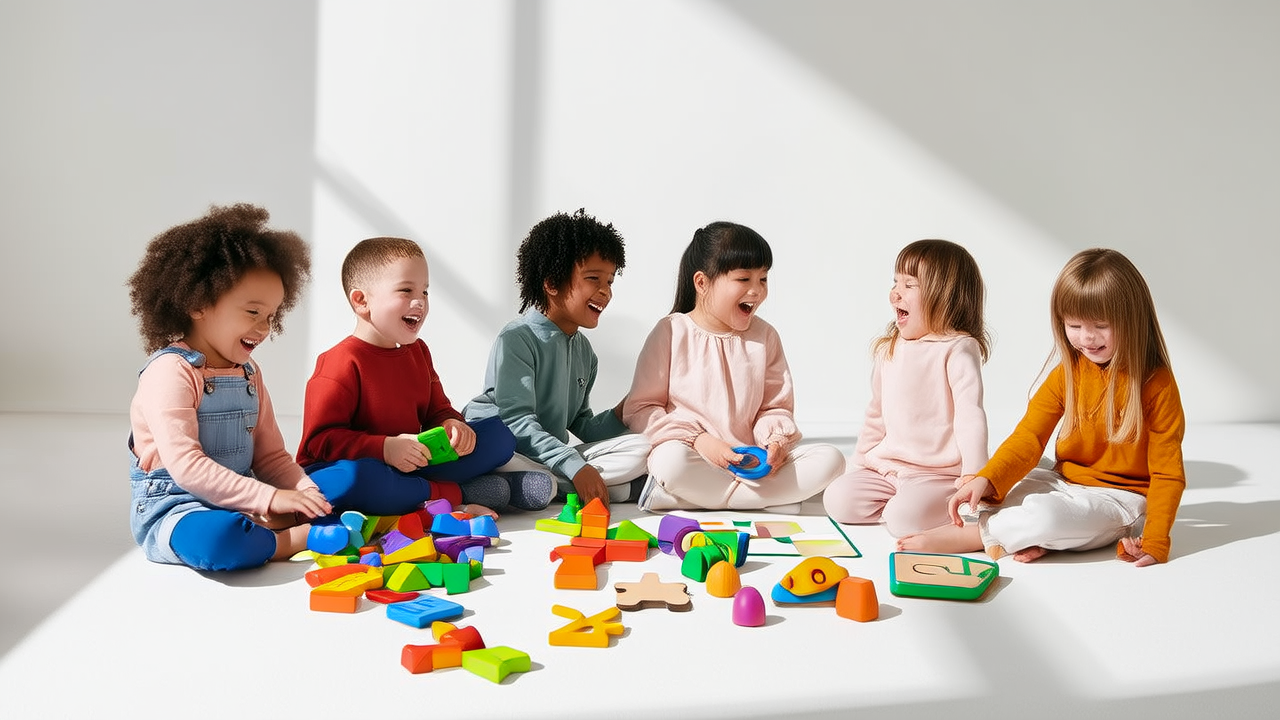
Best STEM Toys for Screen Time: Parent Picks 2026
Screen-based STEM learning can be useful when it is short, interactive, and paired with offline play. The best choices depend on age: PBS KIDS and Khan Academy Kids for 2 to 5, Scratch and Tinkercad for 6 to 9, Code.org and Micro:bit for 10 and up. Keep sessions to 15 to 30 minutes, use a timer, and ask the child to explain what they built. Parents should prioritize creation over passive watching, protect sleep, and check privacy settings. This article gives practical filters, app picks, and routines that fit real family schedules without turning every tablet into a classroom quickly.
What Counts As Good STEM Learning On A Screen?
What counts as good STEM learning on a screen is not the same as educational content that simply uses science words. A strong screen activity gives the child control, feedback, and a reason to try again. If the child can finish the task without thinking, it is entertainment, not learning. If the child gets a clear hint, changes one variable, sees a result, and can say what caused the change, that is a good sign.
The best apps and websites also connect to the physical world. A child who watches a video about gears should be able to make a cardboard lever after the screen is off. A child who uses Scratch should be able to explain the sequence to a parent. A child who builds in Tinkercad should be able to sketch the same object on paper. The screen is the launchpad, not the whole mission.
- Before you download anything, ask these questions.
- Does the child make something?
- Does the activity require choices?
- Does it give useful feedback?
- Does it encourage talking, not just tapping?
- Does it have a clear stopping point?
- Can you extend it offline with blocks, paper, baking, nature, or a toy car?
These filters matter because screen time can quietly crowd out movement, conversation, and sleep. The American Academy of Pediatrics recommends limiting screen media for ages 2 to 5 to about one hour per day of high-quality programming, while for ages 6 and older it suggests consistent limits so media does not replace sleep, physical activity, homework, and face-to-face interaction. Under 18 months, avoid screen use except video chatting.
A practical family target is 15 to 30 focused minutes of STEM screen time per day for school-age kids, plus 5 to 10 minutes of review. If total entertainment media is already high, do not add more. Swap one passive cartoon for one interactive STEM session and keep the total roughly stable.
Best Screen Learning Picks By Age Group
Age is the first filter. A 4-year-old on Tinkercad may feel frustrated, while a 9-year-old on PBS KIDS may be bored. Match the interface, reading level, and motor skills to the child, then add one stretch goal.
Ages 2 To 5 Keep It Hands-On
For preschoolers, keep it simple. PBS KIDS apps such as PBS KIDS Games and PBS KIDS Design Squad offer short tasks tied to shapes, counting, patterns, and cause and effect. Khan Academy Kids gives a friendly classroom feel with songs, stories, and simple math. Toca Lab Elementary Science can introduce lab tools through play, while Osmo Numbers turns a tablet into a physical number game with tiles. At this age, the goal is not coding syntax. It is attention, pattern spotting, and confidence.
Use a 10.5-inch tablet or a 12.9-inch tablet only if the child can reach the screen without leaning too close. Set the device at eye level and keep the screen 16 to 18 inches away, or about 40 to 45 centimeters. A stand helps because it reduces hunching and makes the activity feel like a learning station rather than a snack-time distraction.
Ages 6 To 9 Move From Watching To Building
At this age, kids can start to create. Scratch is still one of the best free choices for block coding because it lets children make stories, games, and animations without typing long code. CodeSpark Academy adds guided challenges and can be a bridge for kids who are not ready for open-ended Scratch. Tinkercad is excellent for 3D design, especially if paired with paper sketches or a simple 3D printer. National Geographic Kids can support science reading, but it is most useful when parents ask two questions after each article: what surprised you, and what question do you have?
For this band, a 15-minute build and a 5-minute show-and-tell works well. If you use a laptop, place the screen 20 to 24 inches from the eyes, or 50 to 60 centimeters, with the top edge near eye level. If the child uses an external mouse, a child-sized mouse can reduce wrist strain, but many kids do fine with a trackpad for short sessions.
Ages 10 And Up Add Real Projects
Older children can handle real tools. Code.org courses introduce loops, conditionals, and debugging through puzzles. Micro:bit boards, which are small programmable computers about the size of a credit card, can be paired with the MakeCode editor for physical computing. Sphero Mini and LEGO Education Spike Prime or WeDo 2.0 offer robot play that connects screen programming to movement. BrainPOP and Prodigy Math can support curriculum review, but they should be balanced with hands-on projects so the child does not mistake school-like drills for STEM.
For tweens, aim for 25 to 35 minutes of focused project work, then a break. This is a good time for longer sessions because attention span is stronger, but it is also the age when media multitasking becomes common. Keep notifications off and put the phone out of reach during the STEM block.
| Age | Best screen picks | Session length | Offline bridge | Red flag |
|---|---|---|---|---|
| 2 to 5 | PBS KIDS, Khan Academy Kids, Toca Lab, Osmo Numbers | 10 to 15 minutes | Blocks, counting objects, water play | Too many taps with no choice |
| 6 to 9 | Scratch, CodeSpark, Tinkercad, National Geographic Kids | 15 to 20 minutes | Paper sketches, garden labels, toy car ramps | Child cannot explain the result |
| 10 and up | Code.org, Micro:bit, MakeCode, Sphero, LEGO Education, BrainPOP | 25 to 35 minutes | Robot testing, sensor experiments, repair projects | Device use replaces sleep or exercise |
Use this table as a starting point, not a scoreboard. If an app creates more stress than learning, the child is probably at the edge of readiness. Move to a simpler prompt, add a parent partner, or switch to a hands-on activity.
Common Sense Media has reported that families often mix learning apps with passive entertainment, so use the red flag column as a quick weekly audit. If a child can complete the task without thinking, pause and ask for a physical version.
How To Set Up A STEM-Friendly Screen Station
A dedicated screen station improves behavior more than expensive software. Kids learn faster when the environment signals what is happening.
Use a stable surface, not a bed or couch, because poor posture makes short sessions feel long. A tablet stand, a low laptop riser, and a child chair that lets feet touch the floor can make a 20-minute session more comfortable. If the device sits on a kitchen counter, tape a small card to the table with the task and a timer icon so the child knows the plan before touching the screen.
- Charge devices outside the learning zone so the child does not start with low battery anxiety.
- Use airplane mode when possible for apps that do not need internet.
- Disable autoplay in YouTube, Netflix, and app stores.
- Put the device on a timer, not on an endless scroll.
- Keep one physical material nearby, such as paper, blocks, a magnifier, or a measuring tape.
Lighting matters. A 15.6-inch laptop screen can look dim in a bright room, causing the child to lean forward. A simple desk lamp on the wall side, not shining into the screen, reduces glare. If you use a tablet in daylight, angle it slightly away from the window. A matte screen protector can help, but it may reduce contrast, so test it before buying.
Set the environment for one purpose. If the same tablet is used for cartoons, games, school, and video calls, children have trouble switching gears. A separate user profile, a guided access mode on iPad, or a family-safe browser can make the device feel like a tool. The screen itself is not the enemy; unclear boundaries are.
Routines That Turn Screen Time Into Real Learning
The best routines are small enough to survive bad days. A weekly plan should include three short sessions and one family share moment. Do not try to turn every afternoon into a coding camp.
Use a two-screen rule: one screen to learn, one object to build. For example, after 15 minutes in Tinkercad, ask the child to make the same shape with blocks. After 10 minutes on PBS KIDS, go outside and find three things that move, float, or change shape. After Scratch, draw the story on paper. This makes the screen a bridge, not a bubble.
Ask three questions after each session: what did you make, what was hard, and what will you try next. Keep answers short. A 4-year-old may say a robot went fast. A 9-year-old may explain a loop. A 12-year-old may describe debugging a sensor. The parent listens, then saves the child's explanation in a notebook or photo album.
Add one weekly parent-child project. It can be tiny: measure how far a toy car rolls on carpet versus tile, time how long an ice cube melts in sun, or make a paper bridge and test it with coins. The child uses the screen only to record results or look up a fact. This prevents STEM from becoming a digital-only subject.
Schedule before a favorite meal or after homework, not right before bed. Blue light can suppress melatonin, and emotionally stimulating content can raise alertness. If your child uses a tablet at night, enable a warm display, reduce brightness, and stop 30 to 60 minutes before sleep. For many families, late evening STEM feels productive but actually damages next-day focus.
Safety, Privacy, And Device Settings Parents Should Check
Privacy is part of good screen STEM. Many apps collect data, request camera access, or allow chat. Choose tools that are COPPA-friendly, avoid public forums, and turn off personalized ads when possible. For younger children, use a parent profile and review app permissions every month.
Set device limits before the child asks. On iPad, Screen Time can limit categories and schedule downtime. On Android, Google Family Link can manage app installs and usage reports. On Chromebooks, managed profiles can control sites and extensions. A guest Wi-Fi network can keep school tablets separate from smart-home devices.
- Check these settings.
- Microphone access off unless needed.
- Camera off unless needed.
- Location off for games.
- In-app purchases disabled.
- Chat disabled.
- Autoplay disabled.
- App rating reviews checked weekly.
- Data usage capped for household.
- No unknown downloads outside app stores.
Teach digital citizenship early. If the child uses Scratch or Code.org, remind them not to share full names, school, address, or photos. If they use a shared family computer, use separate accounts. If they see a scary pop-up, they should close the tab and tell an adult. A calm rule works better than a harsh punishment.
Watch for signs the balance is off: irritability when the timer ends, hiding the screen, skipping meals, or losing interest in offline play. Those are not reasons to ban STEM forever. They are reasons to shorten sessions, change the app, add physical materials, and reconnect with the parent as a partner.
What To Do When Screen STEM Fails Or Gets Boring
Screen STEM fails when the child is watching, not thinking. If a session feels like a chore, shrink it. A 7-minute challenge is better than a 30-minute fight. Replace long videos with one prompt: can you make a character move left when the button is pressed, can you sort five rocks by size, can you predict what happens when you add more water?
If the app is too hard, lower the goal. For Scratch, start with a moving sprite, not a game. For Tinkercad, make a box, not a bridge. For Micro:bit, use a preset program and then change one value. Mastery grows from repeated small wins, not from impressing parents with a finished product.
If the child only wants games, use games as hooks. Minecraft Education Edition can teach logic and planning if you set a task such as building a working gate or measuring a farm. Prodigy Math can review fractions if followed by a kitchen activity. The goal is not to make every activity school-like; it is to make the screen serve curiosity.
If siblings share devices, use a timer basket with two cards: one for each child. One child gets 20 minutes while the other does blocks, drawing, or a scavenger hunt. Rotate every week. This teaches fairness without turning the parent into a referee.
Sometimes the best STEM screen choice is no screen. A 10-minute walk to collect leaves, a paper airplane contest, or a LEGO challenge can outperform an app. Parents often feel guilty for limiting devices, but research and daily life both show that unstructured play and conversation are powerful science learning.
A Simple Weekly Plan For Parents
A simple weekly plan keeps parents from improvising every day. Pick two short app sessions, one physical project, and one share moment. The share moment can be at dinner or on a weekend morning.
For a 6-year-old, Monday might be 10 minutes of PBS KIDS pattern games, Wednesday 15 minutes of Scratch Junior or CodeSpark, Friday 20 minutes of Tinkercad with a parent, and Sunday a 10-minute paper bridge test. For a 12-year-old, Tuesday could be 25 minutes of Micro:bit MakeCode, Thursday 25 minutes of Code.org, Saturday 30 minutes of Sphero or LEGO robot, and Sunday 5 minutes of explaining the project.
Track progress with one page. Write the date, app used, time, what the child made, and one question for next time. Do not grade the child. Grade the plan. If two weeks feel rushed, drop one screen session and add more outdoor play. If one session is too easy, raise the challenge by asking the child to teach a sibling or make a variation.
The real win is not a perfect app lineup. It is a child who sees technology as a tool for making, testing, and explaining. When screen time is short, purposeful, and followed by a conversation, STEM learning can move from the glass to the hands, and from the hands to the mind.
More Articles
 Kids on Motorcycle Back: Age Limits, Helmets & Risks (2026)
 Brad Pitt: How He Protected Kids During Divorce
 Does Yuta Like Little Kids? Science-Backed Signs
 Who Are the Kids on the Angel Tree? (2026)
 Ashanti’s Son, Privacy & Modern Parenthood
 Mini Aussies With Kids: What Parents Really Need to Know
 Bad Bunny Grammy Moment: A Parenting Opportunity
 Emilia Clarke Kids: Truth About Her Parenthood Choices
 What Is My Cousin'S Kid To Me (2026)
 Sugar and Kids’ Hyperactivity: What Research Shows (2026)